
Payment Provider: Comgate
The module provides integration with payment gateway https://www.comgate.cz
Table of contents
- Comgate configuration
- Odoo configuration
- Payment methods
- Preauthorization
- Refund
- Author
- Contact
Comgate configuration
- Go to https://portal.comgate.cz
- Integration > Shops settings > "your shop" > Shop connections > Edit
- Set Enabled payment establishment type to HTTP POST protocol - backend or redirect
- Set IP whitelist
- Set URL paid, cancelled, pending:
- https://www.yourdomain.com/payment/status?id=${id}&refId=${refId}
- https://www.yourdomain.com/payment/status?id=${id}&refId=${refId}
- https://www.yourdomain.com/payment/status?id=${id}&refId=${refId}
- Set URL for payment result transfer:
Odoo configuration
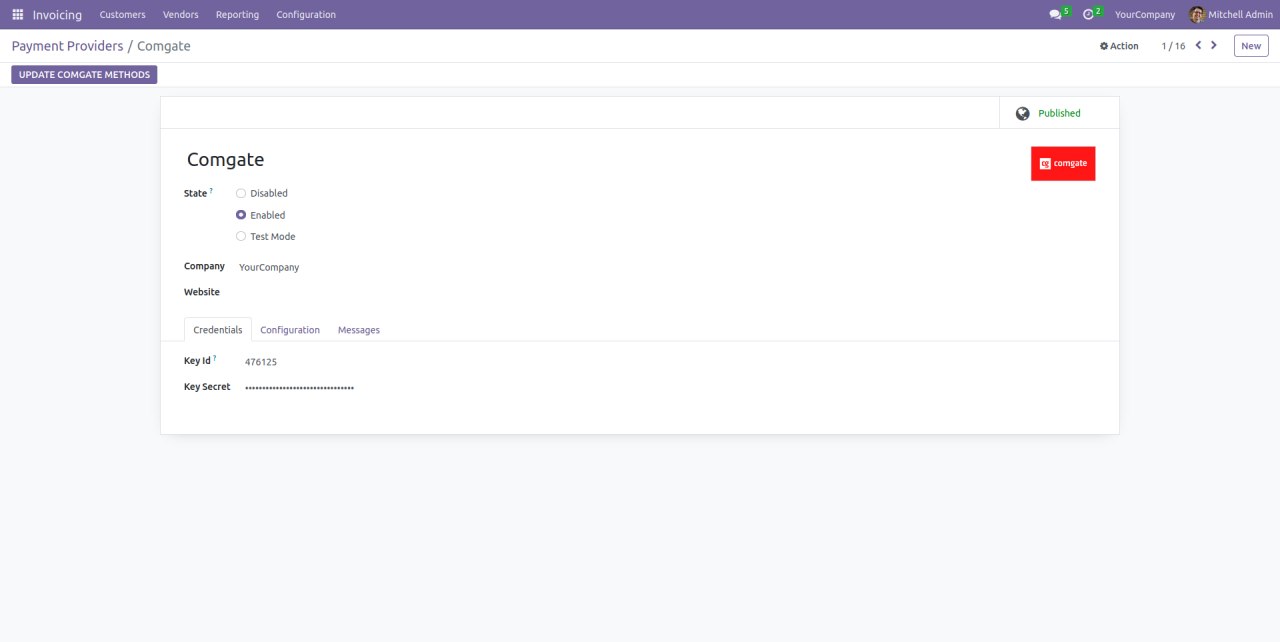
- Go to Invoicing > Configuration > Payment Providers > Comgate (Enterprise edition: Accounting > Configuration > Payment Providers > Comgate)
- Fill Key ID and Key Secret obtained from Comgate (https://www.comgate.cz/objednat)
Payment methods
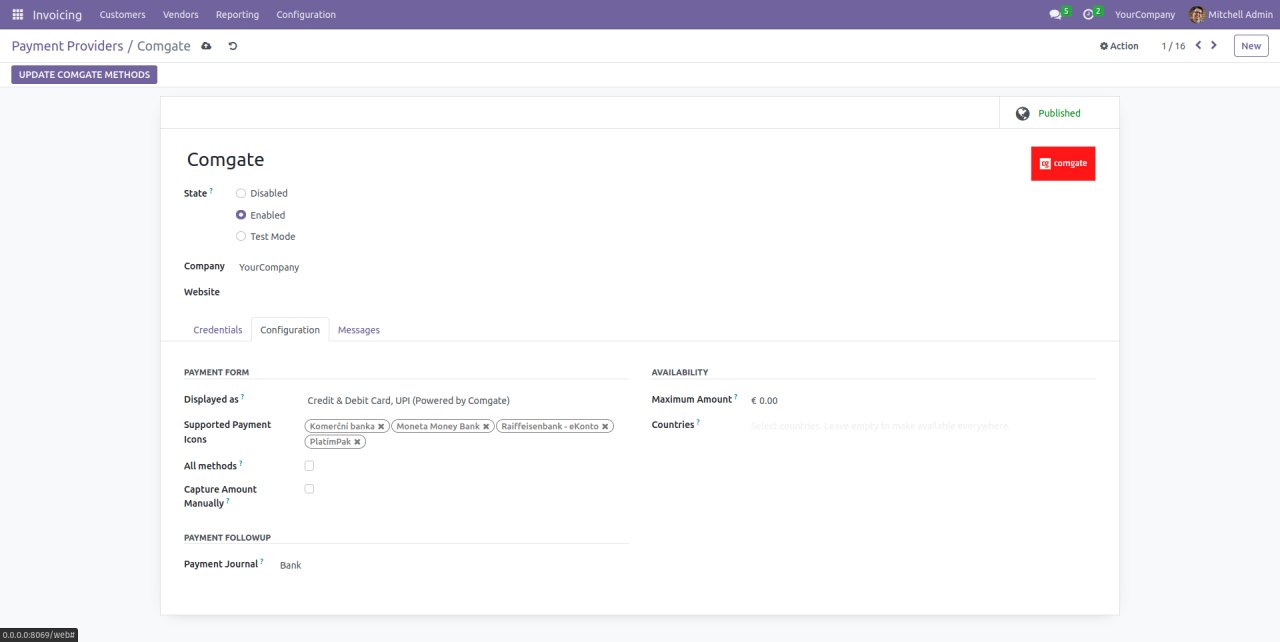
There is option to choose allowed payment methods
- Go to Invoicing > Configuration > Payment Providers > Comgate (Enterprise edition: Accounting > Configuration > Payment Providers > Comgate)
- Press button Update Comgate Methods
- Select supported payment icons or press All methods if you want to support all payment methods
Preauthorization
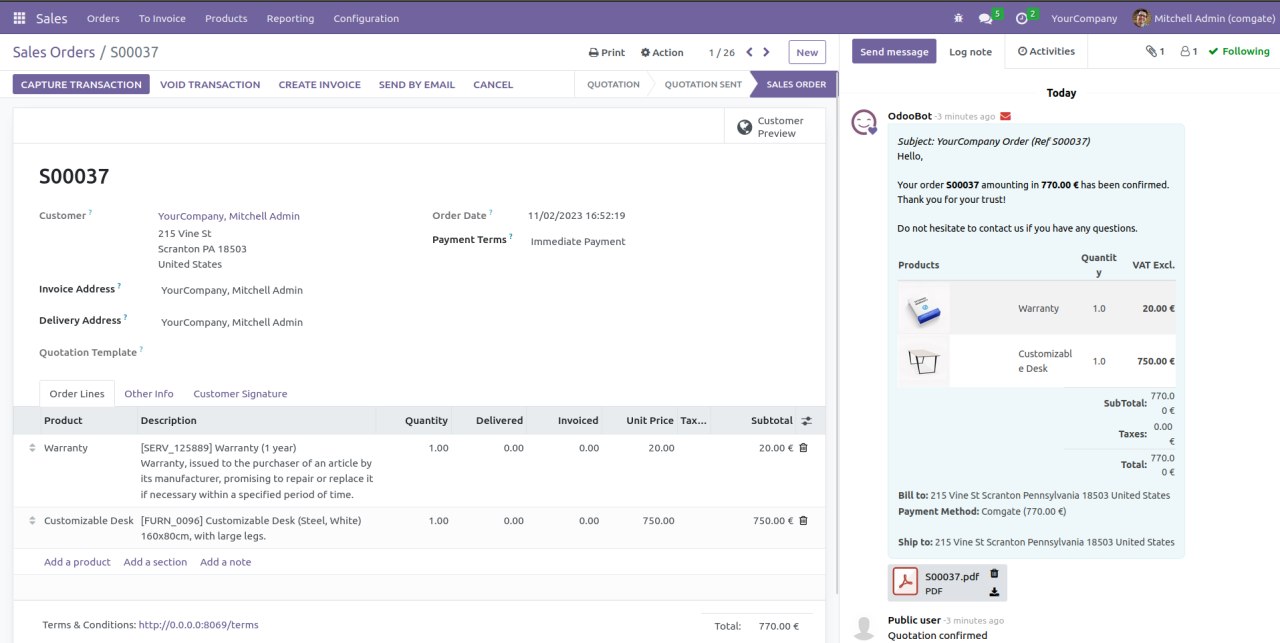
If you want to capture payments you need to:
- Go to Invoicing > Configuration > Payment Providers > Comgate > Configuration (Enterprise edition: Accounting > Configuration > Payment Providers > Comgate)
- Enable Capture Amount Manually
After payment user will see that payment was preauthorized

You will be able to capture or void transaction
Refund
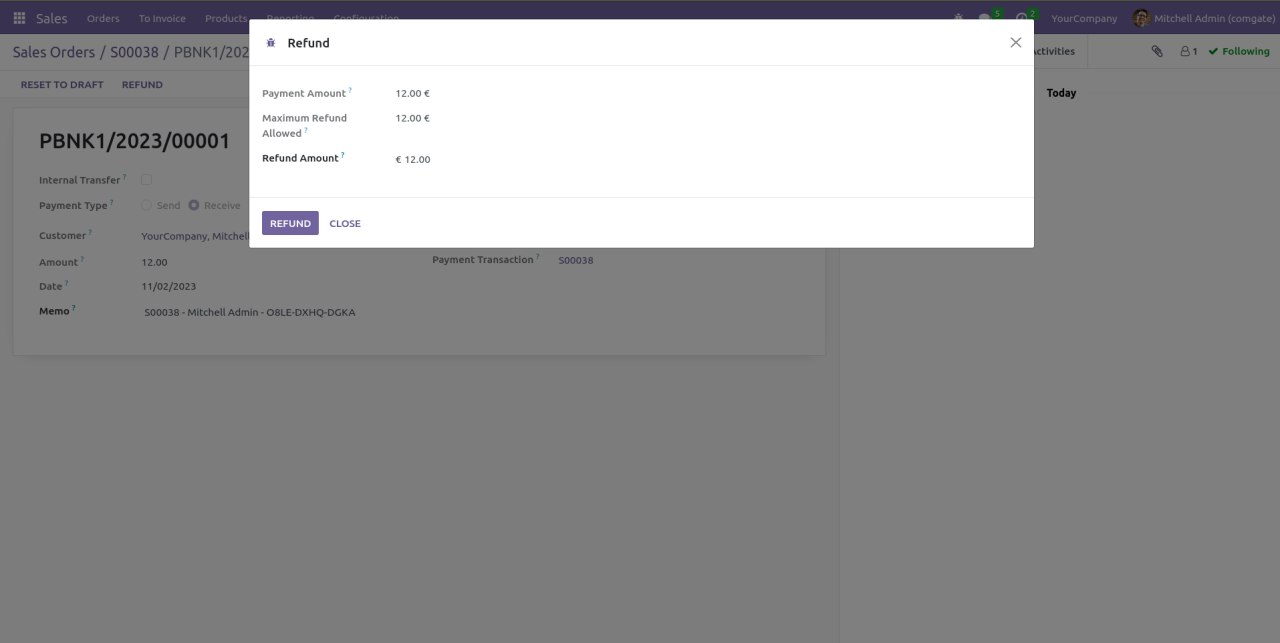
Comgate supports partial and full refunds.
- Go to Sales > Orders
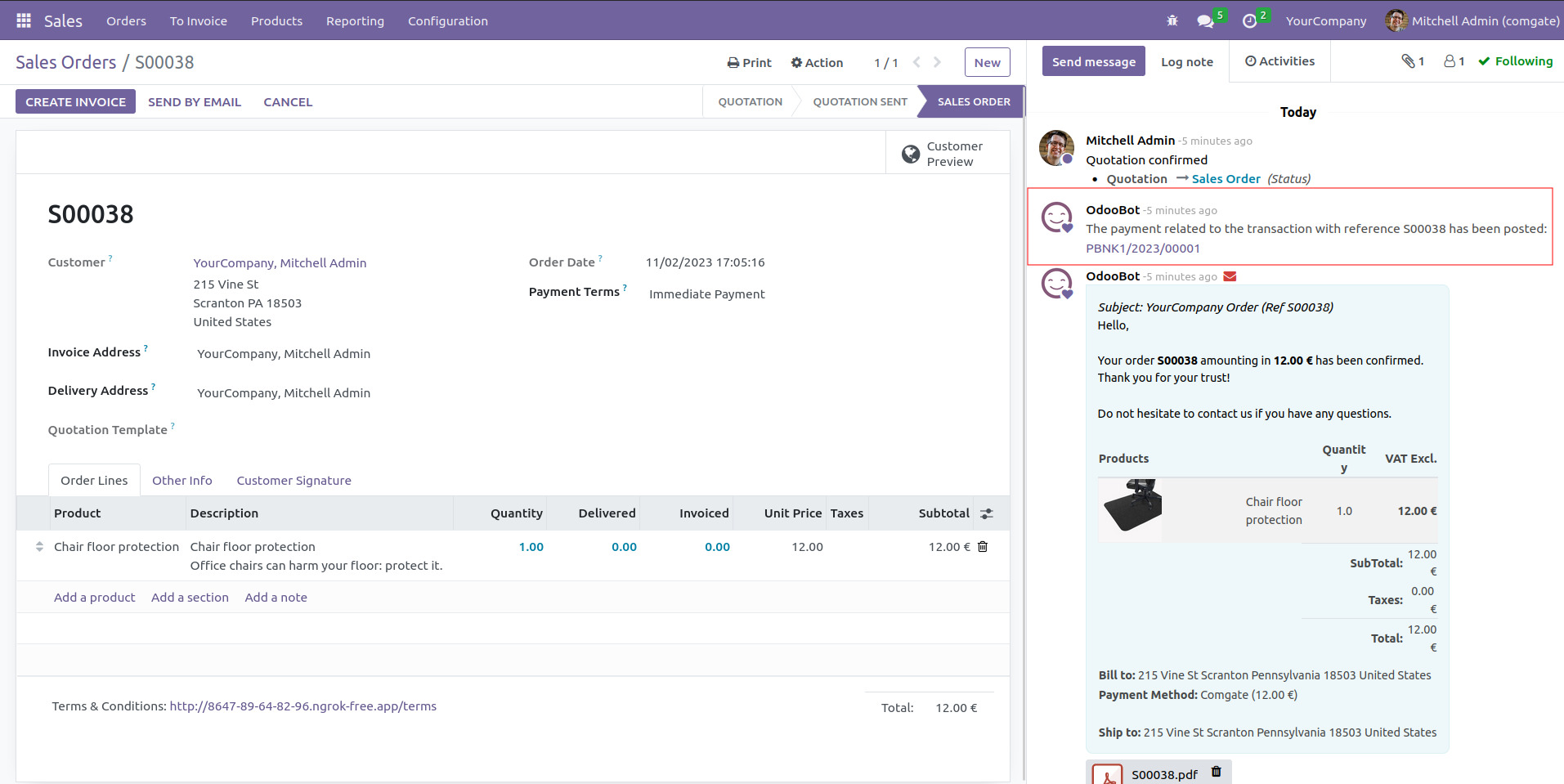
Click on payment related to the transaction and press Refund
Author
- Data Dance s.r.o.
Contact
Your Dynamic Snippet will be displayed here...
This message is displayed because youy did not provide both a filter and a template to use.